Leaderboard




Popular Content
Showing content with the highest reputation on 03/17/2014 in all areas
-
2 points
-
1 point
-
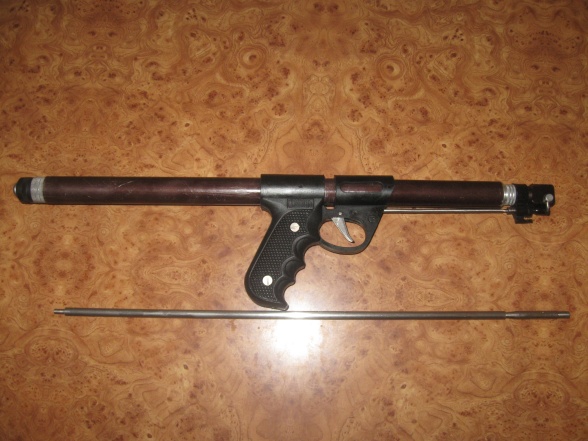
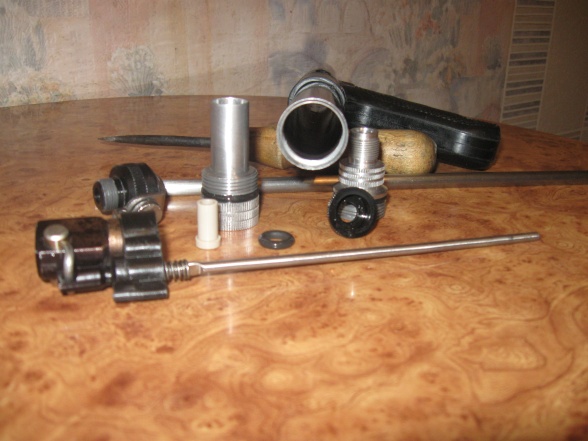
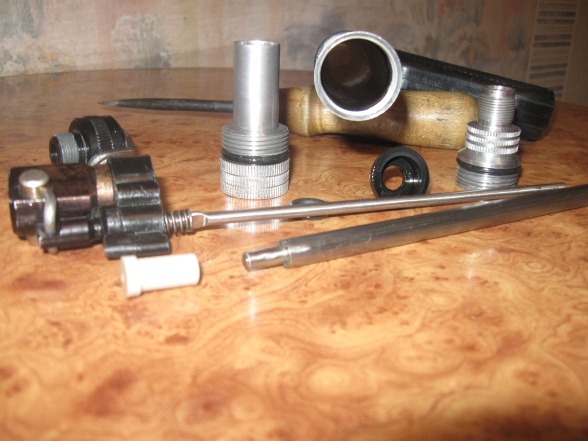
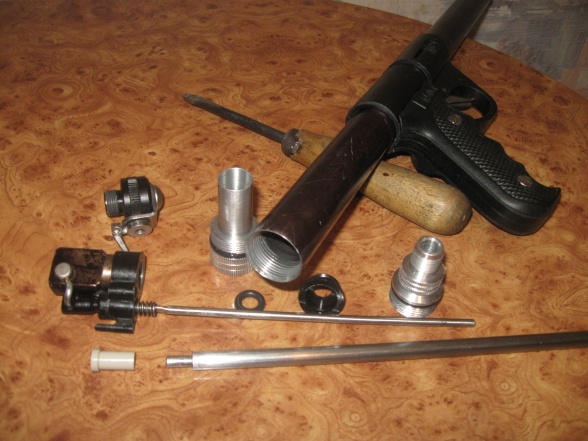
1 pointДве темы на форуме, разные мнения, часто полярные. Ранее не принимая участия в диалогах выскажу своё мнение таким вот образом: СВН-02. Полная деталировка ружья. Красноречивая пустота ресивера.
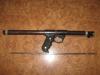
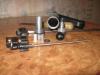
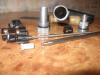
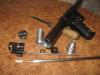 1 point
 -
1 point1 point1 point1 point1 point1 pointАлександр 79 "Консультации начинающим подвохам. (с)" О каких консультациях может идти речь и о какой морали при таком отношении к окружающим? ps/ удачи в наступающем окружающим ...1 point1 point1 point1 point1 point1 point1 point1 pointЗакончился ремонт в мастерской-начал делать отбортовку. Получается вроде нечаво. Если Михалыч после теста даст добро, то могу за 1-3 дня сделать 10 комплектов.
 1 point









Account
Navigation
Search
Configure browser push notifications
Chrome (Android)
- Tap the lock icon next to the address bar.
- Tap Permissions → Notifications.
- Adjust your preference.
Chrome (Desktop)
- Click the padlock icon in the address bar.
- Select Site settings.
- Find Notifications and adjust your preference.
Safari (iOS 16.4+)
- Ensure the site is installed via Add to Home Screen.
- Open Settings App → Notifications.
- Find your app name and adjust your preference.
Safari (macOS)
- Go to Safari → Preferences.
- Click the Websites tab.
- Select Notifications in the sidebar.
- Find this website and adjust your preference.
Edge (Android)
- Tap the lock icon next to the address bar.
- Tap Permissions.
- Find Notifications and adjust your preference.
Edge (Desktop)
- Click the padlock icon in the address bar.
- Click Permissions for this site.
- Find Notifications and adjust your preference.
Firefox (Android)
- Go to Settings → Site permissions.
- Tap Notifications.
- Find this site in the list and adjust your preference.
Firefox (Desktop)
- Open Firefox Settings.
- Search for Notifications.
- Find this site in the list and adjust your preference.